
11. XHR and the Fetch API
XMLHttpRequest (XHR) and the newer Fetch API allow JavaScript running in a web page to make HTTP requests to a server without loading a new page. They are the foundation of interactive web applications, including single page applications (SPAs) built with frameworks such as React, Angular and Vue.
11.1 Introduction
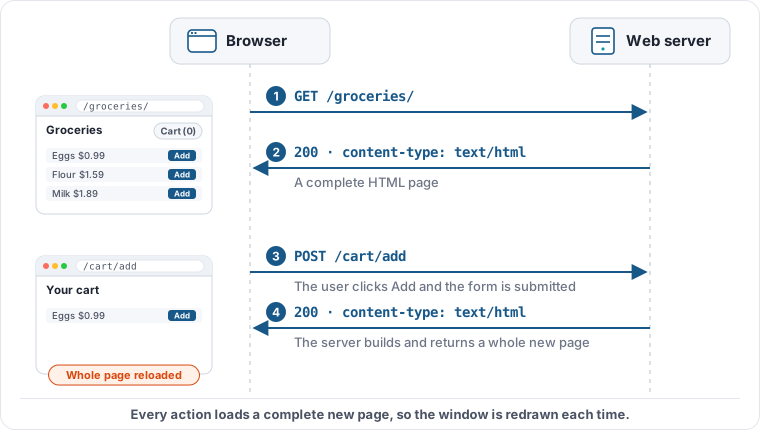
In traditional web applications, the browser renders a series of HTML pages generated by the server. Each time a user enters some data and submits a form, the browser sends a request to the server so that it can perform some operation or calculation. The server returns the result as a complete HTML page, which replaces the page that was displayed:
XHR and the Fetch API allow JavaScript on a web page to send requests to a server without leaving the page. Web applications use this technique to update just the part of the page that has changed, avoiding the delay and flicker that is seen when the browser loads a new page.
A typical example might be a shopping site with a cart that can be updated without leaving the page:
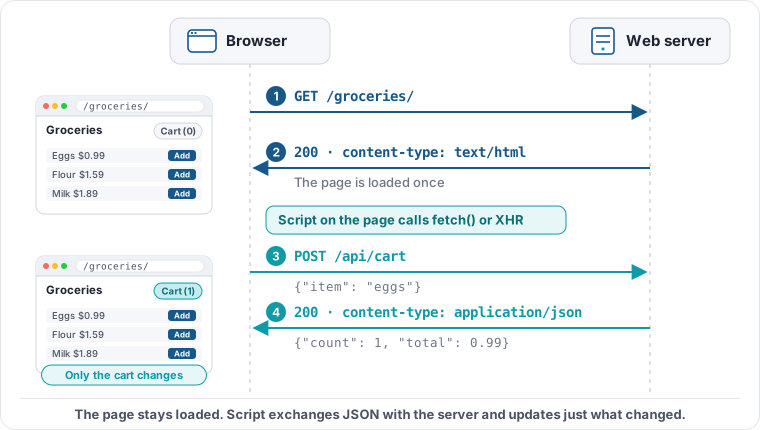
The data returned from these requests does not have to be in HTML format because it is not automatically rendered by the browser. Instead, it is processed by JavaScript, which makes the appropriate changes to elements on the page to display the data.
In most cases, the JSON (JavaScript Object Notation) data format is used to transmit data to and from the server, with a content-type of application/json. It has a simple format and can be easily handled in JavaScript code.
Browsers only allow script to read the responses from requests to the same origin (scheme, host name and port) as the page, unless the server returns Cross-Origin Resource Sharing (CORS) headers such as access-control-allow-origin to allow access from other sites.
11.2 Making an XHR call
XMLHttpRequest was the first API that allowed script to make HTTP requests and is supported by every browser. The sample code, shown below, makes a call to the web server to obtain the data to display in a list box. The response data is in HTML format for the sake of simplicity because it allows the text returned from the server to be inserted directly into the <div> element.
<script>
function GetShoppingList()
{
    // Create an instance of the HTTP request object
    const xhr = new XMLHttpRequest();

    // Register a callback that will handle the asynchronous response
    // from the server
    xhr.addEventListener("load", function ()
    {
        // Use the HTML returned from the server to create the list
        document.getElementById("divShoppingList").innerHTML = xhr.responseText;
    });

    // Specify HTTP GET and supply the URL of the server endpoint
    xhr.open("GET", "/httpgallery/xhr/getlist");

    // Start an asynchronous XHR request
    xhr.send();
}
</script>

<input onclick="GetShoppingList();" type="button" value="Fetch List"/>
<div id="divShoppingList"></div>
A working demonstration of this code is shown below in Example 11.
Example 11
Populate a list box using XHR
Click on 'Fetch List' to download a shopping list from the server:
11.3 The Fetch API
The Fetch API is the modern replacement for XHR. It is simpler to use because the fetch() function returns a promise that can be used with the JavaScript await keyword, rather than requiring event handlers.
Parameters can be sent to the server either as query string values in the URL, or in the body of a POST (or PUT, PATCH, etc.) request. Using the request body is preferred when the data may be too large to fit in the URL or has a more complex structure.
The code below sends two numbers to the server as a JSON object in the body of a POST request. The server adds them together and returns the result as JSON:
<script>
async function AddNumbers()
{
    const result = document.getElementById("spanResult");

    // Send the two values as JSON in the body of a POST request
    const response = await fetch("/httpgallery/xhr/sum", {
        method: "POST",
        headers: { "Content-Type": "application/json" },
        body: JSON.stringify({
            a: Number(document.getElementById("txtValue1").value),
            b: Number(document.getElementById("txtValue2").value)
        })
    });

    // Parse the JSON response, e.g. {"a":32,"b":48,"sum":80}
    const data = await response.json();
    result.textContent = response.ok ? data.sum : data.error;
}
</script>

<input id="txtValue1"/>
<input id="txtValue2"/>
<input onclick="AddNumbers();" type="button" value="Add"/>

<p>Result is: <span id="spanResult"></span></p>
Example 12 shows a working version of this code:
Example 12
Pass two parameters with fetch()
Click on 'Add' to display the sum of the two numbers entered:
Result is:
Using HttpWatch with Examples 11 & 12
HttpWatch will show the XHR and Fetch requests made by the examples on this page:
- Open HttpWatch by pressing Ctrl+Shift+H, clicking the HttpWatch icon on the browser toolbar, or right-clicking the page and selecting HttpWatch
- Click on Record to start logging requests in HttpWatch
- Use Examples 11 and 12 to see how the requests are recorded in HttpWatch
- An arrow symbol next to the URL shows that a request was made using XHR, and an arrow head symbol shows that the Fetch API was used
- Select the request from Example 12 and go to the POST Data tab to see the JSON that was sent, and the Content tab to see the JSON response