
6. HTTP Methods
The HTTP method is supplied in the :method pseudo-header (or in the request line with HTTP/1.1) and specifies the operation that the client has requested. When you browse web sites, pages, links and HTML forms only use two methods: GET for queries that can be safely repeated and POST for operations that may have side effects (e.g. ordering a book from an online store).
JavaScript code, and other HTTP clients such as mobile apps, often call web APIs that also use these methods:
| PUT | Creates or replaces the resource at the specified URL with the content of the request. |
| PATCH | Applies a partial update to a resource. |
| DELETE | Deletes the specified resource. |
| HEAD | The same as GET, but only the response headers are returned. It can be used to check whether a resource exists, or has changed, without downloading it. |
| OPTIONS | Asks which methods and options the server supports. Browsers automatically send an OPTIONS preflight request to check that a server allows certain types of cross-origin request from JavaScript. |
The methods are defined in RFC 9110 and, for PATCH, RFC 5789. The rest of this page looks at GET and POST in more detail.
6.1 The GET method
The GET method is used to retrieve information from a specified URL and is assumed to be a safe, repeatable operation by browsers, caches and other HTTP aware components. This means that the operation must have no side effects and GET requests can be re-issued without worrying about the consequences.
For example, displaying the balance of a bank account has no effect on the account and can be safely repeated. In fact, browsers will allow a user to refresh a page that resulted from a GET, without displaying any kind of warning. Browsers may also fetch pages with GET before the user clicks a link (known as prefetching), and proxies may automatically retry GET requests if they encounter a temporary network connection problem.
One downside of GET requests is that they can only supply data in the form of parameters encoded in the URL (known as a query string), or in request headers such as cookie. Browsers and servers limit the length of URLs, typically to a few thousand characters, so GET cannot be used for uploading files or other operations that require large amounts of data to be sent to the server. Also, URLs are often saved in browser history and server logs, so they should not contain passwords or other sensitive data.
6.2 The POST method
The POST method is used for operations that have side effects and cannot be safely repeated. For example, transferring money from one bank account to another has side effects and should not be repeated without explicit approval by the user. If you try to refresh a page in your browser that resulted from a POST, it displays a message to warn you that there may be side effects:
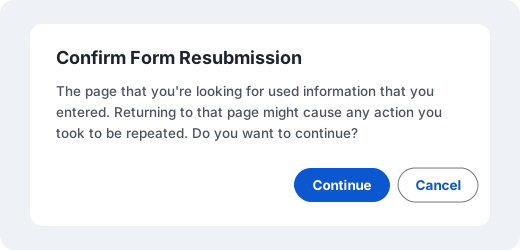
For banking, and other transactional web applications, the best approach is to use a POST when the user submits a change and then use a 302 or 303 redirect to change to a GET that displays the result of the action (e.g. the new account balance). The user can then safely refresh the resulting page without being presented with the warning shown above. For more details on this technique, known as POST/Redirect/GET, see 7. Redirection.
The POST request message has a content body that is normally used to send parameters and data, e.g. form fields, JSON or uploaded files. Unlike the URL or cookies, HTTP itself does not limit the amount of data that can be sent, although servers usually set their own limit. POST is therefore used when files or other large amounts of data have to be sent to the server.
Example 6a - Using GET
Adding two numbers is a safe, repeatable operation. Use the Add button to submit the calculation using a GET request:
Example 6b - Using POST
Modifying a bank account has side effects and should not be automatically repeated. Submit a debit below, then refresh the resulting page using Chrome's Reload button, Ctrl+R or F5. The point of this example is to see Chrome's Confirm Form Resubmission dialog, which warns that refreshing would repeat the POST request. This example uses a cookie to store the account balance.
After submitting: Use Chrome's Reload button, Ctrl+R or F5 to refresh this page and display the real form-resubmission confirmation. Choose Cancel to avoid repeating the debit. If you choose to continue, Chrome will send the POST request again and the account balance will be debited a second time.
Example 6c - Uploading a file with POST
Files can be uploaded using the content of the POST request message. Use the Choose File button to select a file and then click Upload to send it. (Any file up to 10 MB that takes less than 2 minutes to upload will work. It will not be examined or stored. The page will just display its name, size and type.)
Using HttpWatch with Example 6a - 6c
To view the HTTP methods discussed on this page:
- Open HttpWatch by pressing Ctrl+Shift+H, clicking the HttpWatch icon on the browser toolbar, or right-clicking the page and selecting HttpWatch
- Click on Record to start logging requests in HttpWatch
- Try using each of the examples above
- The submitted form values can be viewed in the first example by looking at the Query String tab and by looking at the POST Data tab for the others.